Around 4 years ago I wrote a blog post about how to Replace netsh with Windows PowerShell which includes basic powershell networking cmdlets. After working with Microsoft Azure, Nano Server and Containers, PowerShell together with networking becomes more and more important. I created this little cheat sheet so it becomes easy for people to get started.
Basic Networking PowerShell cmdlets
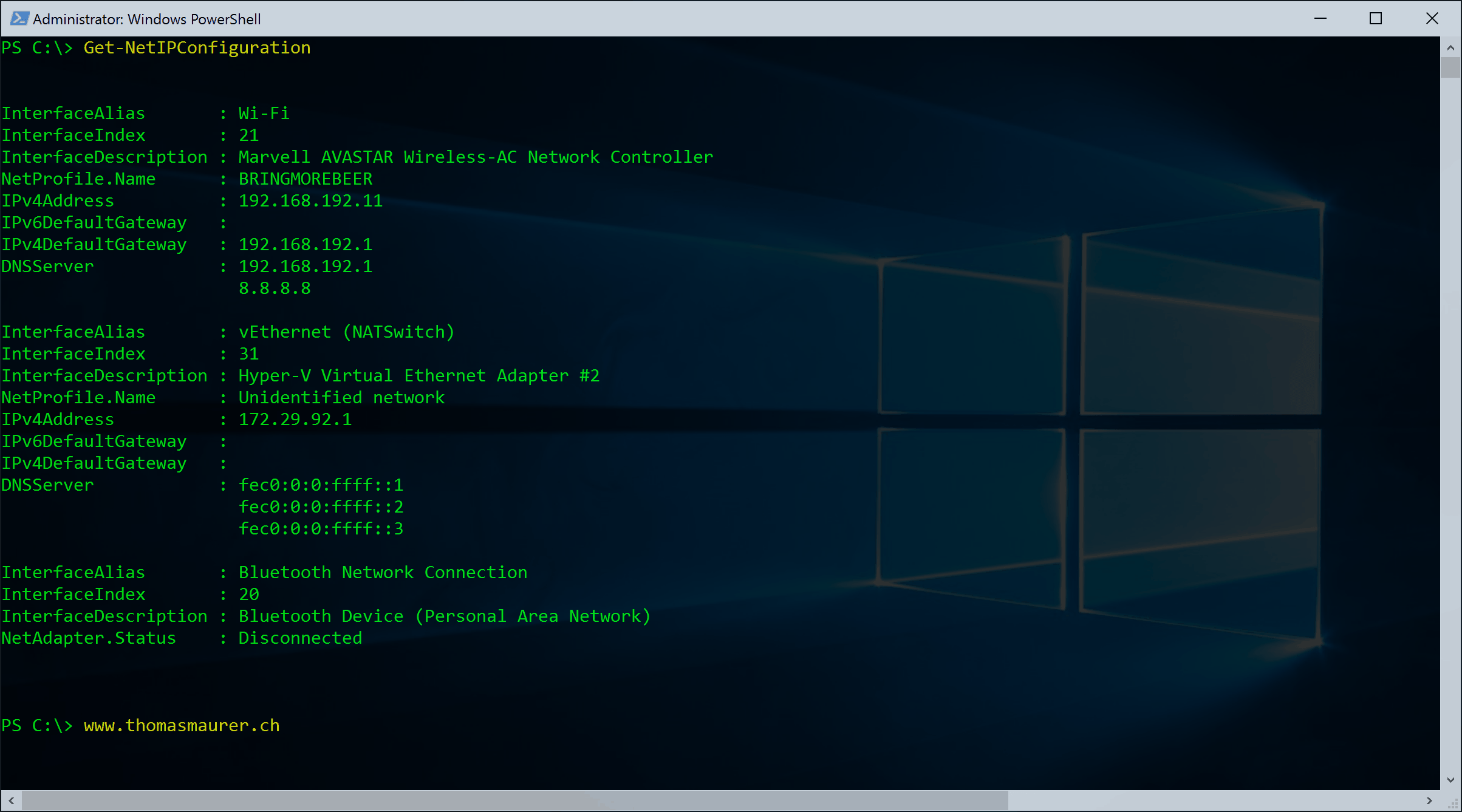
Get the IP Configuration (ipconfig with PowerShell)
Get-NetIPConfiguration
List all Network Adapters
Get-NetAdapter
Get a spesific network adapter by name
Get-NetAdapter -Name *Ethernet*
Get more information VLAN ID, Speed, Connection status
Get-NetAdapter | ft Name, Status, Linkspeed, VlanID
Get driver information
Get-NetAdapter | ft Name, DriverName, DriverVersion, DriverInformation, DriverFileName
Get adapter hardware information. This can be really usefull when you need to know the PCI slot of the NIC.
Get-NetAdapterHardwareInfo
Disable and Enable a Network Adapter
Disable-NetAdapter -Name "Wireless Network Connection"
Enable-NetAdapter -Name "Wireless Network Connection"
Rename a Network Adapter
Rename-NetAdapter -Name "Wireless Network Connection" -NewName "Wireless"
IP Configuration using PowerShell
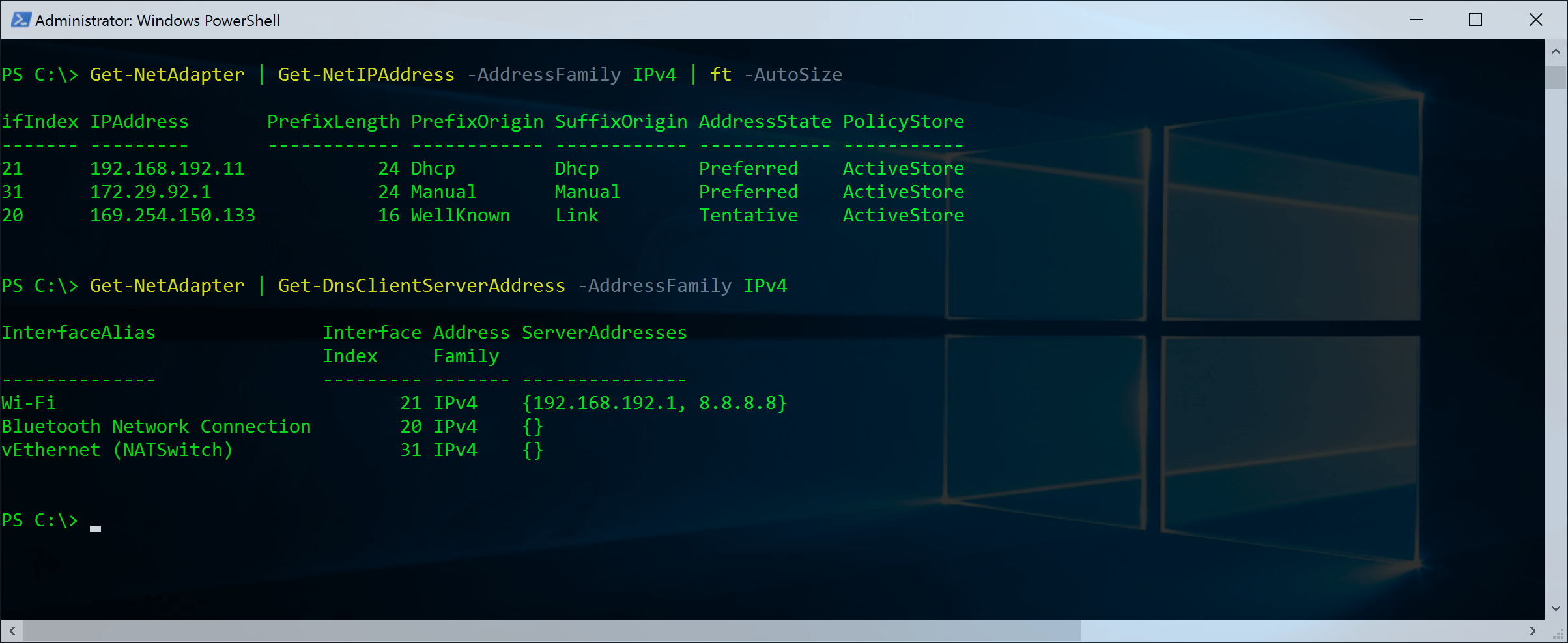
Get IP and DNS address information
Get-NetAdapter -Name "Local Area Connection" | Get-NetIPAddress
Get IP address only
(Get-NetAdapter -Name "Local Area Connection" | Get-NetIPAddress).IPv4Address
Get DNS Server Address information
Get-NetAdapter -Name "Local Area Connection" | Get-DnsClientServerAddress
Set IP Address
New-NetIPAddress -InterfaceAlias "Wireless" -IPv4Address 10.0.1.95 -PrefixLength "24" -DefaultGateway 10.0.1.1
or if you want to change a existing IP Address
Set-NetIPAddress -InterfaceAlias "Wireless" -IPv4Address 192.168.12.25 -PrefixLength "24"
Remove IP Address
Get-NetAdapter -Name "Wireless" | Remove-NetIPAddress
Set DNS Server
Set-DnsClientServerAddress -InterfaceAlias "Wireless" -ServerAddresses "10.10.20.1","10.10.20.2"
Set interface to DHCP
Set-NetIPInterface -InterfaceAlias "Wireless" -Dhcp Enabled
Clear DNS Cache with PowerShell
You can also manage your DNS cache with PowerShell.
List DNS Cache:
Get-DnsClientCache
Clear DNS Cache
Clear-DnsClientCache
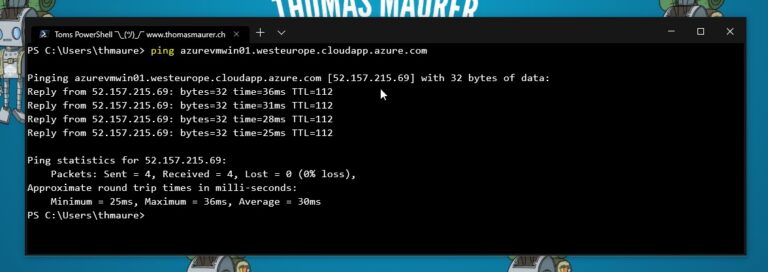
Ping with PowerShell
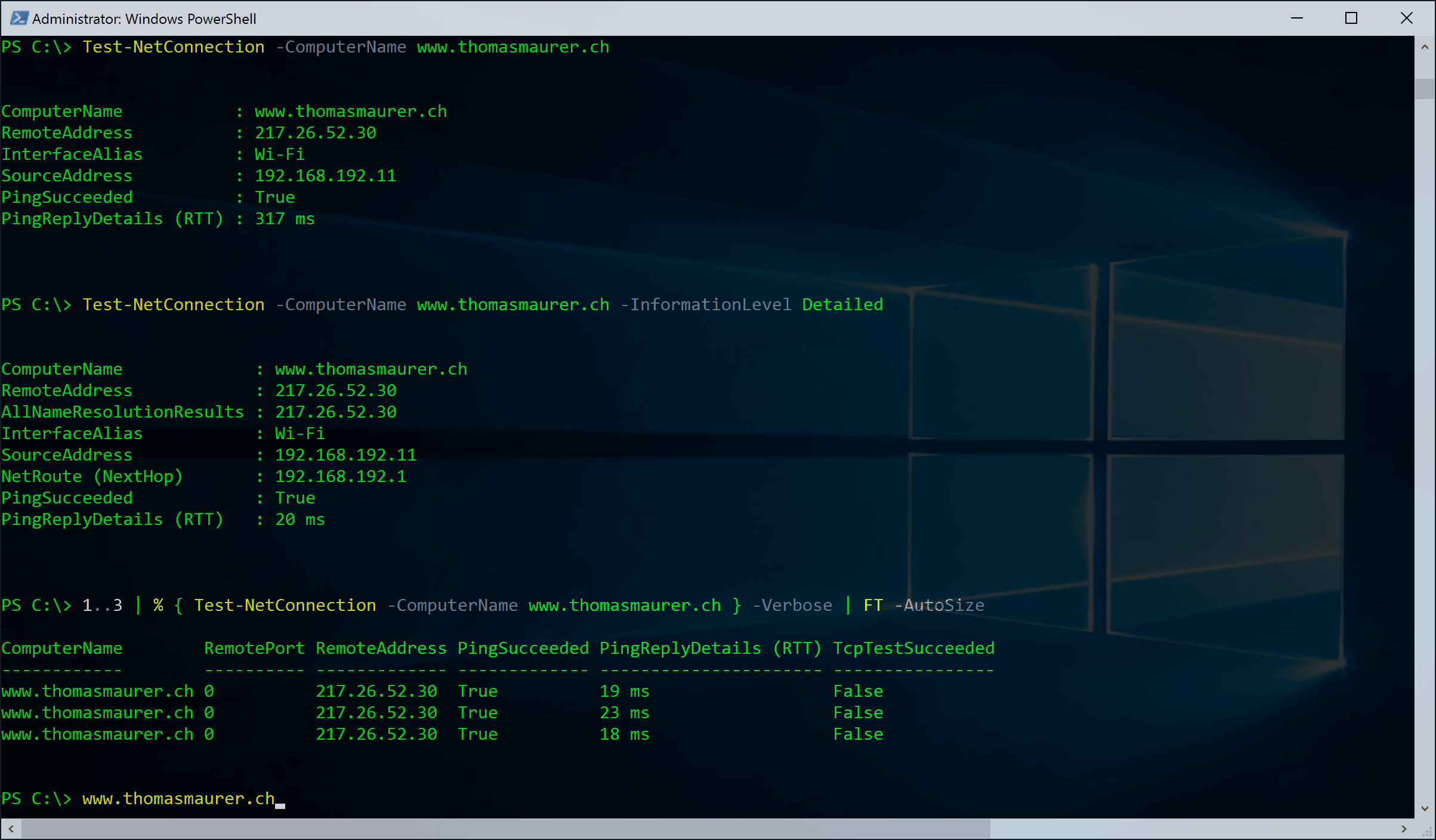
How to Ping with PowerShell. For a simple ping command with PowerShell, you can use the Test-Connection cmdlet:
Test-Connection thomasmaurer.ch
There is an advanced way to test connection using PowerShell
Test-NetConnection -ComputerName www.thomasmaurer.ch
Get some more details from the Test-NetConnection
Test-NetConnection -ComputerName www.thomasmaurer.ch -InformationLevel Detailed
Ping multiple IP using PowerShell
1..99 | % { Test-NetConnection -ComputerName x.x.x.$_ } | FT -AutoSize
Tracert
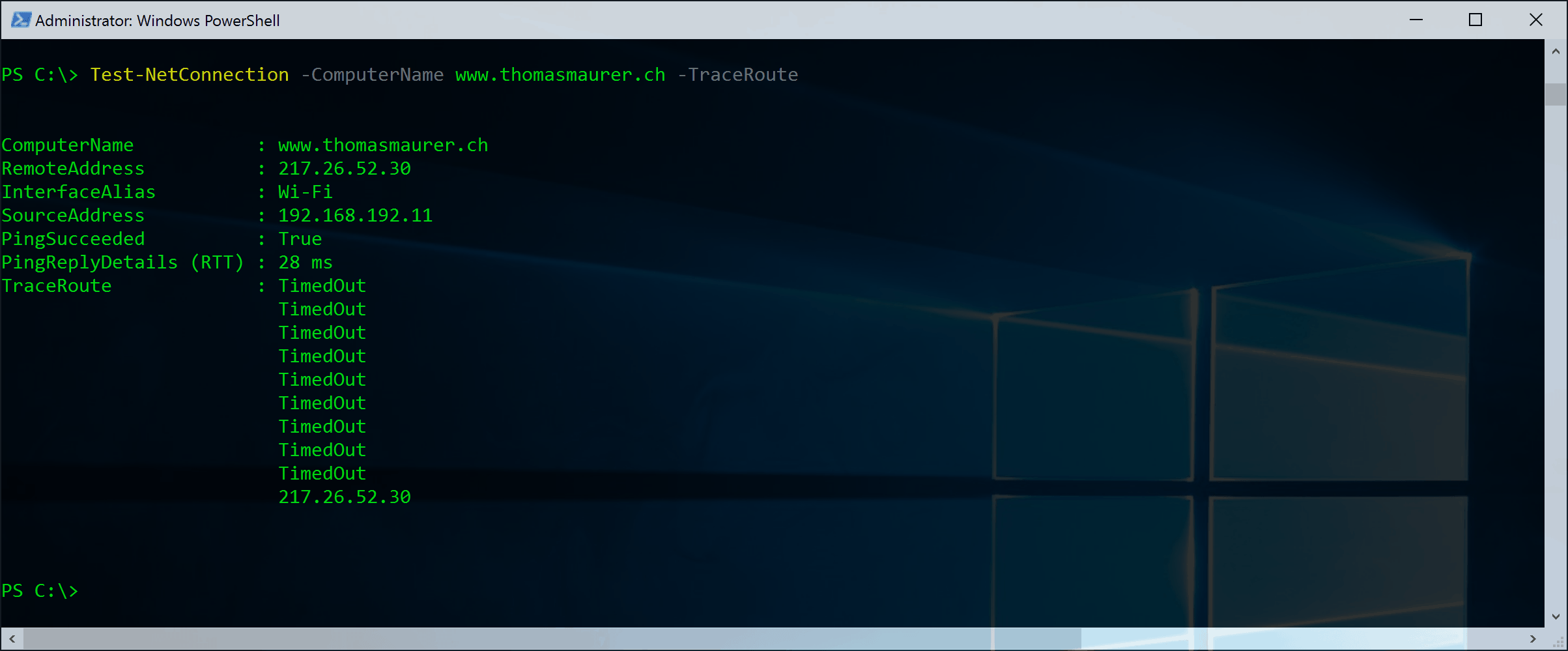
Tracert with PowerShell
Test-NetConnection www.thomasmaurer.ch –TraceRoute
Portscan with PowerShell

Use PowerShell to check for open port
Test-NetConnection -ComputerName www.thomasmaurer.ch -Port 80
Test-NetConnection -ComputerName www.thomasmaurer.ch -CommonTCPPort HTTP
NSlookup in PowerShell
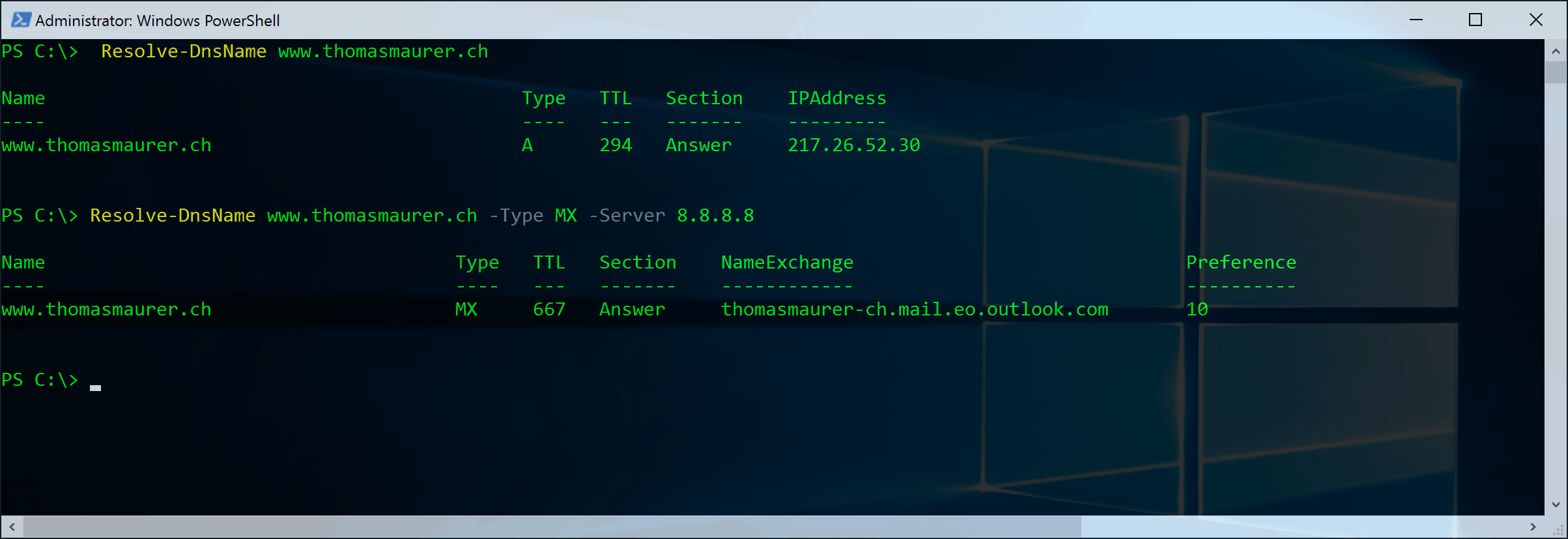
NSlookup using PowerShell:
Resolve-DnsName www.thomasmaurer.ch
Resolve-DnsName www.thomasmaurer.ch -Type MX -Server 8.8.8.8
Route in PowerShell
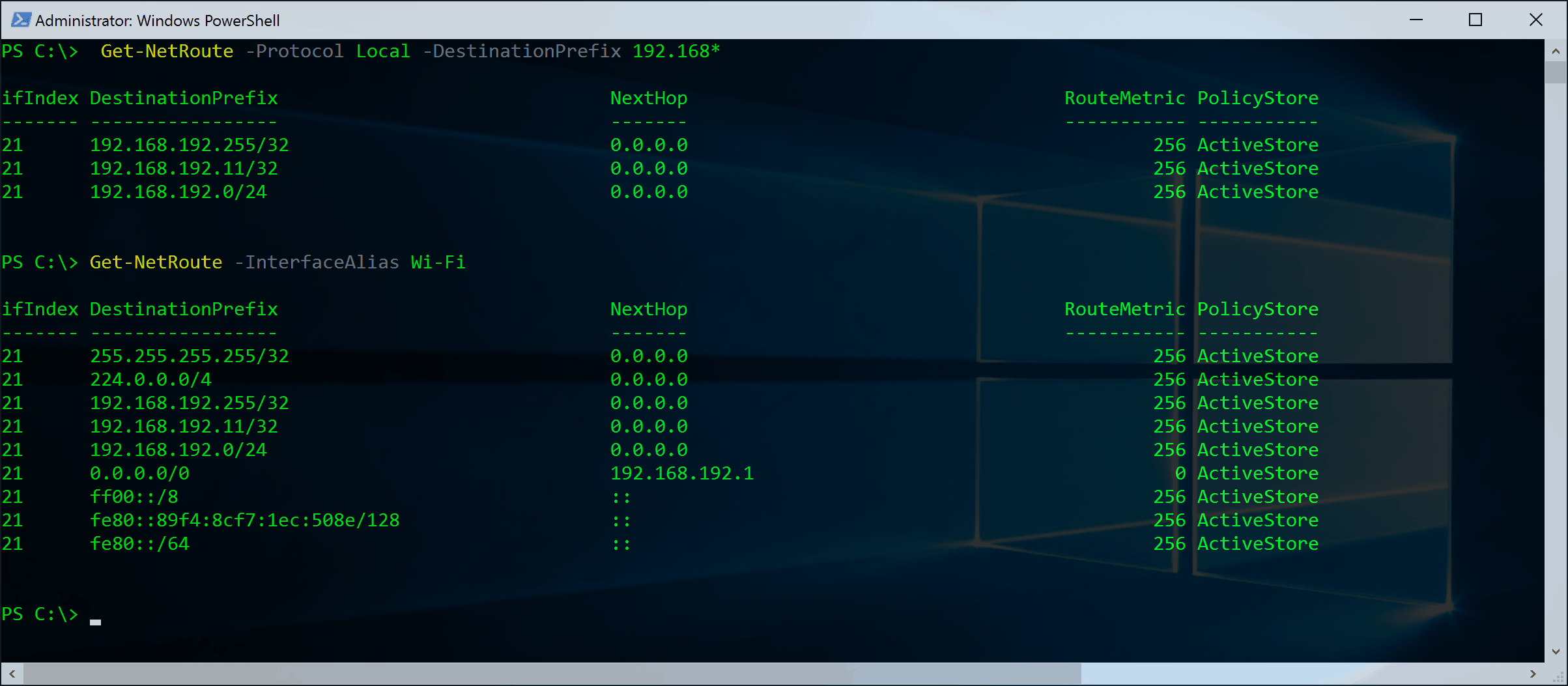
How to replace Route command with PowerShell
Get-NetRoute -Protocol Local -DestinationPrefix 192.168*
Get-NetRoute -InterfaceAlias Wi-Fi

New-NetRoute –DestinationPrefix "10.0.0.0/24" –InterfaceAlias "Ethernet" –NextHop 192.168.192.1
NETSTAT in PowerShell

How to replace NETSTAT with PowerShell
Get-NetTCPConnection
Get-NetTCPConnection –State Established
NIC Teaming PowerShell commands
Create a new NIC Teaming (Network Adapter Team)
New-NetLbfoTeam -Name NICTEAM01 -TeamMembers Ethernet, Ethernet2 -TeamingMode SwitchIndependent -TeamNicName NICTEAM01 -LoadBalancingAlgorithm Dynamic
SMB Related PowerShell commands
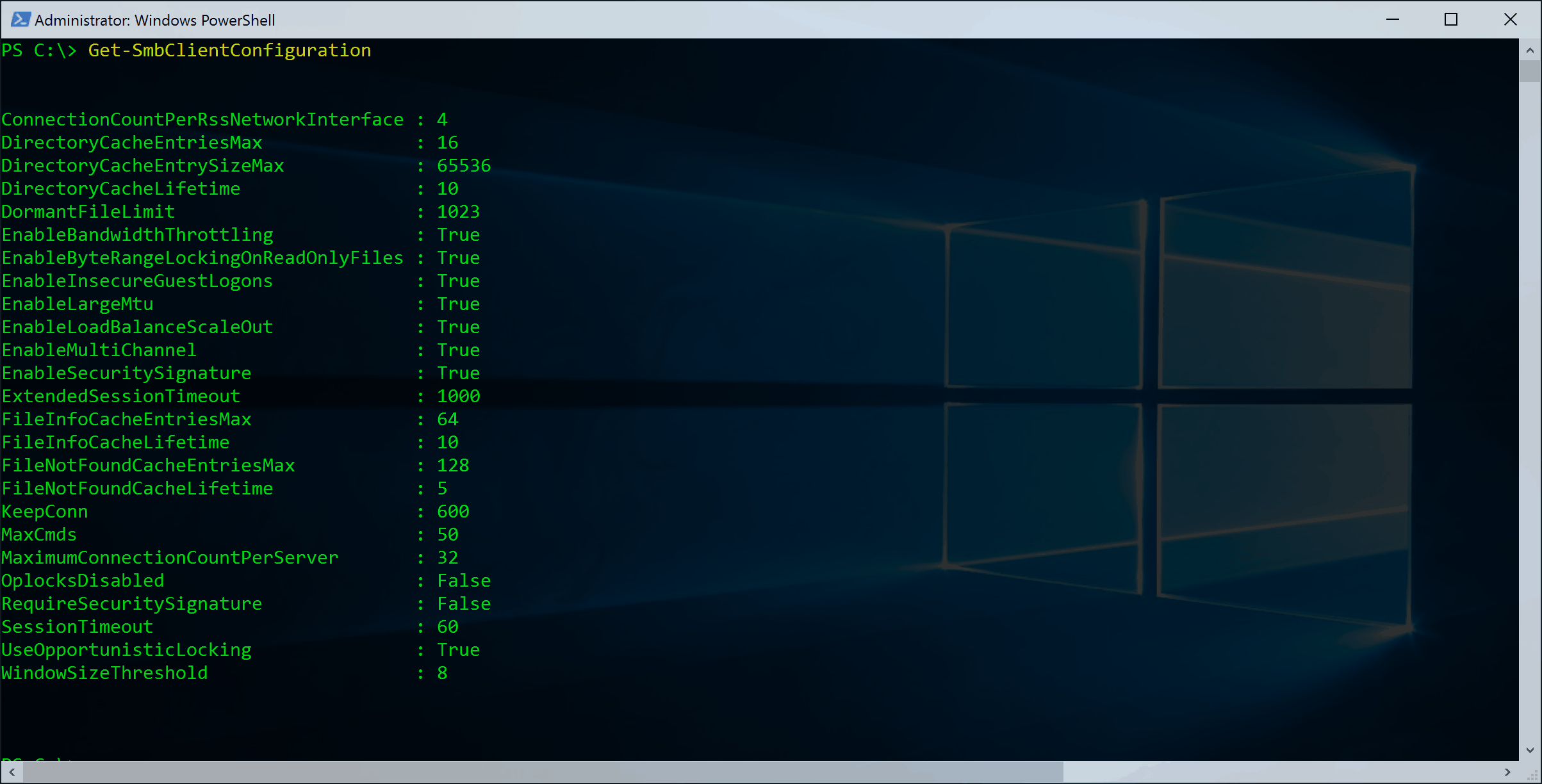
Get SMB Client Configuration
Get-SmbClientConfiguration
Get SMB Connections
Get-SmbConnection
Get SMB Mutlichannel Connections
Get-SmbMutlichannelConnection
Get SMB open files
Get-SmbOpenFile
Get SMB Direct (RDMA) adapters
Get-NetAdapterRdma
Hyper-V Networking cmdlets

Get and set Network Adapter VMQ settings
Get-NetAdapterVmq
# Disable VMQ
Set-NetAdapterVmq -Enabled $false
# Enable VMQ
Set-NetAdapterVmq -Enabled $true
Get VM Network Adapter
Get-VMNetworkAdapter -VMName Server01
Get VM Network Adapter IP Addresses
(Get-VMNetworkAdapter -VMName NanoConHost01).IPAddresses
Get VM Network Adapter Mac Addresses
(Get-VMNetworkAdapter -VMName NanoConHost01).MacAddress
I hope you enjoyed it and the post was helpful, if you think something important is missing, please add it in the comments.